Dell Technologies
I designed an AI-assisted product configuration workflow for sellers with contextual guidance, inline error detection and recommendations, increasing decision accuracy and reducing process time.
AI-Powered
Design System
Web App
Copilot
Figma Make
AI Prototyping
Agentic UX
Conversational UI

Context
I led design for Virtual Assistant, an AI-enabled product configurator for infrastructure products (servers, storage, network). Technical sales representatives (sellers) use it to configure solutions based on customer requirements.
My goal was to replace a cluttered, multi-step configuration process with a single seamless workflow. AI agents connect the tools and data sources sellers used to jump between and generate configuration recommendations, while sellers can still make manual adjustments and control the final decision.
A new validation engine, built on a single source of truth, checks every request so the final output is always sell-ready.
Principal Product Designer
AI-Assisted Selling Tool
Promt to Configure Solution
Broken Connection Between AI Feedback and Content
AI Validation
Complex Tables
1 Day from Concept to Validation
Problem
Lack of contextual guidance
Current table content doesn't stay permanently visible alongside the AI chat panel in the right sidebar. And there is no visual highlights or connection between AI feedback and the table configuration list.
Data-heavy specifications
To make decisions sellers need to go thought 100s of product configuration options in order to find the ones that tell them that it covers the customer requirements before diving deep into detailes.
High risk of errors
When sellers work on a new configuration there is a high risk to pick the wrong options which may lead to an unstable or not working solution which may resulted in canceled deals and company trust.
My task
🔍
Define a solution
Explore and design an improved solution for generating and validating configurations with AI.
🧑🔬
Validate decisions
Create interactive prototypes for a quick team validation and user testing.
🤝
Design handoff
Creating a hand-off documentation for engineering team.
Why the Current Configuration Table Doesn't Work
The original configuration specifications list for a product was dense and hard to scan. Using it as-is in the configuration table would produce an unreadable wall of data. Sellers would struggle to find anything, let alone spot the specific row flagged by the AI agent.
Content is not relevant
🚫
Product images is the least important information for seller but takes more than a half of the screen.
🚫
Configuration list could contain more than 100 options.
🚫
Default list sorting doesn't show the most important options on top.
🚫
Table is densed and makes it hard to find anything.

AI → User communication is boken
🚫
Options where AI defined issues are not visually highlighted and can not be seen on the table.
🚫
In order to explore options with issues users have to navigate into configuration details.
🚫
Error notification message show that something is wrong but doesn't tell what options impacted.
Defining key hypotheses of improvements
✅
Showing the top 5 to 10 specification options let users scan configuration faster by reducing amount of data and focusing on the most important options.
✅
Grouped specifications let users see the whole configuration without scrolling and show where issues were detected by AI before diving into details.
✅
AI validation logic must pinpoint the category and down to exact specifications that have issues.
✅
Dynamic specifications ordering shows the most important options at the top of configuration, making it easier for users to find them.
❝
I want AI to point me to an exact specification where the issues was found and let me review it.
❝
I only need 5 to 10 main specs on top to understand if the config covers the requirements.
❝
Categorising specifications by logic groups is one of the most required improvement still somehow not implemeneted.
100% of users confirmed that having less specs combined by groups will reduce the time they spend on defining configurations.
Optimising Specifications Table Content
I used Copilot and Figma Make to move fast through the opportunity exploration, native prototypes validation, and final design handoff.
1
Defining specification groups with Copilot
I started by grouping all configuration options into logical categories before touching the prototype. Once I had a grouping structure, I brought it to the configuration development team to validate and refine it based on their domain knowledge.

2
Agreeing on the final groups with the configuration team
The first output was a 15-category list. Too long for the table, but it confirmed the right grouping logic. After discussion with the team I narrowed down the list to the 7 categories sellers interact with most during configuration.

Iterating with Table Structures
With a validated grouping structure in place, I moved into prototyping. I used Figma Make to iterate quickly. The product had an existing component library, so I expected Figma Make's output to land close to the established design patterns.
I explored three different ways to structure the configuration table and used Figma Make to prototype each one. For each direction I documented the specific trade-offs so the team could evaluate them against the requirements we had agreed on.
Option 1: Accordion
✅
All key specification categories are visible at once and top specifications for quick scanning.
✅
A category expands in place without leaving the table.
🚫
Expanding a category pushes every other category out of the viewport.
🚫
Open and close animation causes the layout to jump vertically.
🚫
With row out of view it is harder to track which one is flagged by AI.
Option 2: Modals
✅
Same as accordion option allows users quickly scan all categories and top specifications.
✅
Sellers get focused access to a complete category spec list with unlimited vertical space.
🚫
A modal removes the chat panel from view, which breaks the connection with the AI feedback.
🚫
Users have to open and close each category modal to review issues.
Option 3: Tabs
✅
Sellers can easily switch between categories without expanding table vertically.
✅
Full specification list for the selected category is always visible and visually connected to chat panel.
🚫
Tabs show no summary of the other categories.
🚫
Sellers have to click through each tab to review configuration options.
None of the three options passed all the requirements, so I went back to ideation.
I decided to combine the two strongest options into a new interaction model that the team had not considered before: I put together accordion and tabs capabilities in a way that user can see all key categories with a short specification summary for a quick scan, and expand category list without moving content vertically away from viewport.
Sellers can validate the configuration, ask the VA to suggest changes, accept or reject those suggestions, all without loosing a visual connection between table and chat with AI.
✅
All key categories visible at once, no scrolling.
✅
Specification summary for each category visible without any additional interaction.
✅
Full specification detail visible without modals, so AI-flagged issues are never hidden behind an overlay.
✅
System feedback visible directly on the table when issues are found and when they are resolved.
✅
AI validation state updates visible on the table as they happen, without switching screens.
All stakeholders and the engineering team aligned on the direction. I then integrated the configuration table into the full validation prototype to show how it behaves alongside the AI virtual assistant feedback panel in the right sidebar.
✅
Product leadership and engineering team agreed to move forward with my direction.
✅
Proven visual connectivity between AI assistant responses and table content.
✅
Quick user testing shown that implemented interaction solved initial pain points.
1 Day
from initial problem discussion to the final design decisions.
0 Screens
were created in Figma canvas before prototype was approved.
100%
alignment between user needs and product teams.
Preparing Handoff-Ready Designs
Once the interaction pattern was confirmed, I returned to Figma and built high-fidelity mockups to polish every little details.


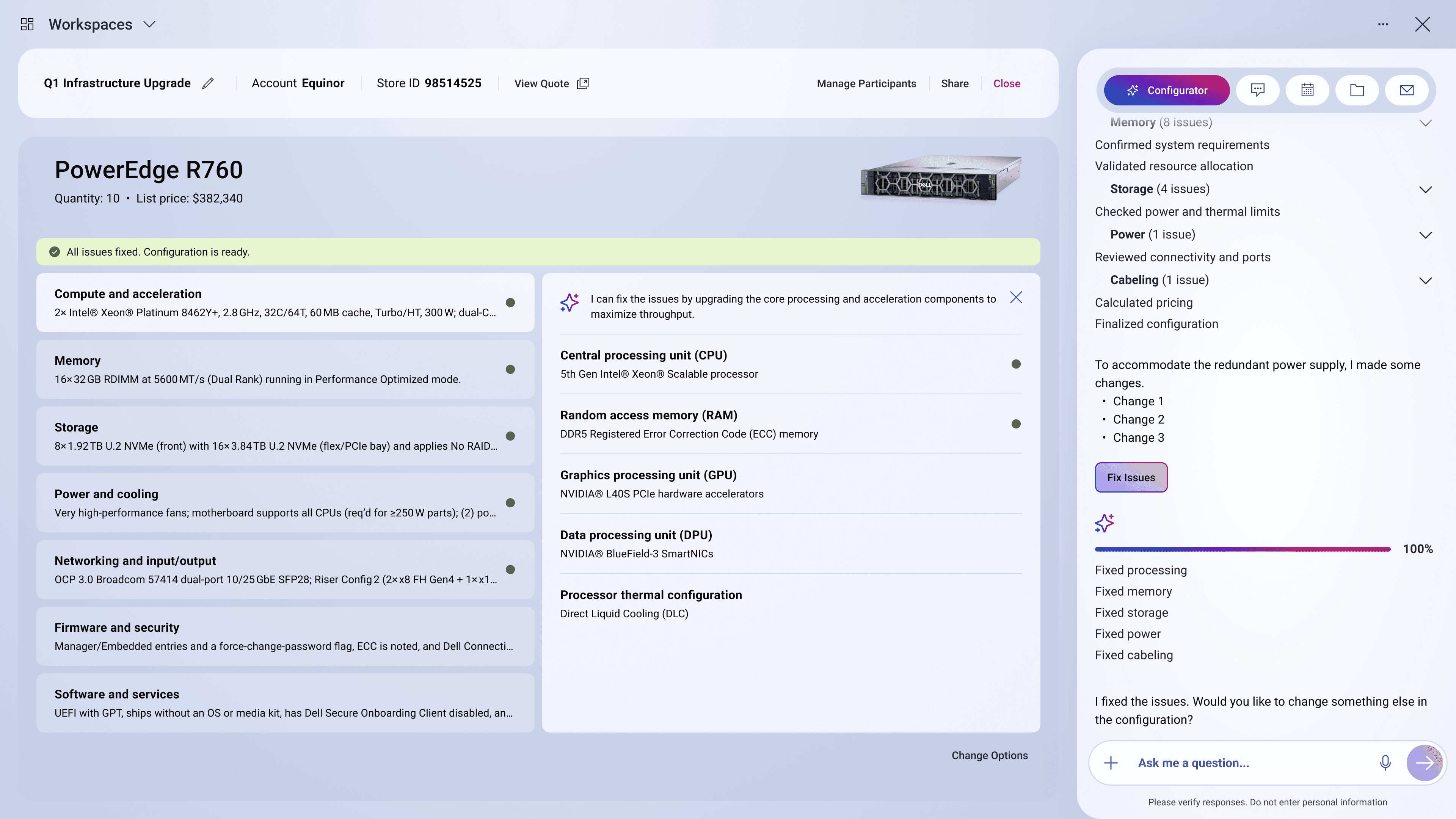

Adding New Components and Behaviour Rules to Design System
I build the production-ready components: all states, interaction tokens, and variants added to the design system.

Impact
The configuration table interaction pattern was agreed by all stakeholders and the engineering team within one day, driven by working prototypes.
1 week → 1 day
it takes for seller to configure a new product solution with Virtual Assistant iterating inside one platform.
AI Tools
integration proved that designer can go through the discovery, ideation and agreement in less than 1 day.
0 risk
when seller configuring a solution because AI gives clear feedback and highlight the issues.
3 → 1
tools is now connected into seamless experience inside single product.
Reflections
AI tools accelerate exploration but still need editorial judgment
The real work was taking that output and validating it against how sellers actually think about configuration categories. AI gets you to a starting point faster. A subject-matter expert gets you to the right answer.
Building with AI changes how quickly you can test, not what you can build
Figma Make let me put three working prototypes in front of stakeholders in the same day. The speed changed the conversation from abstract preference to concrete comparison against real requirements.